

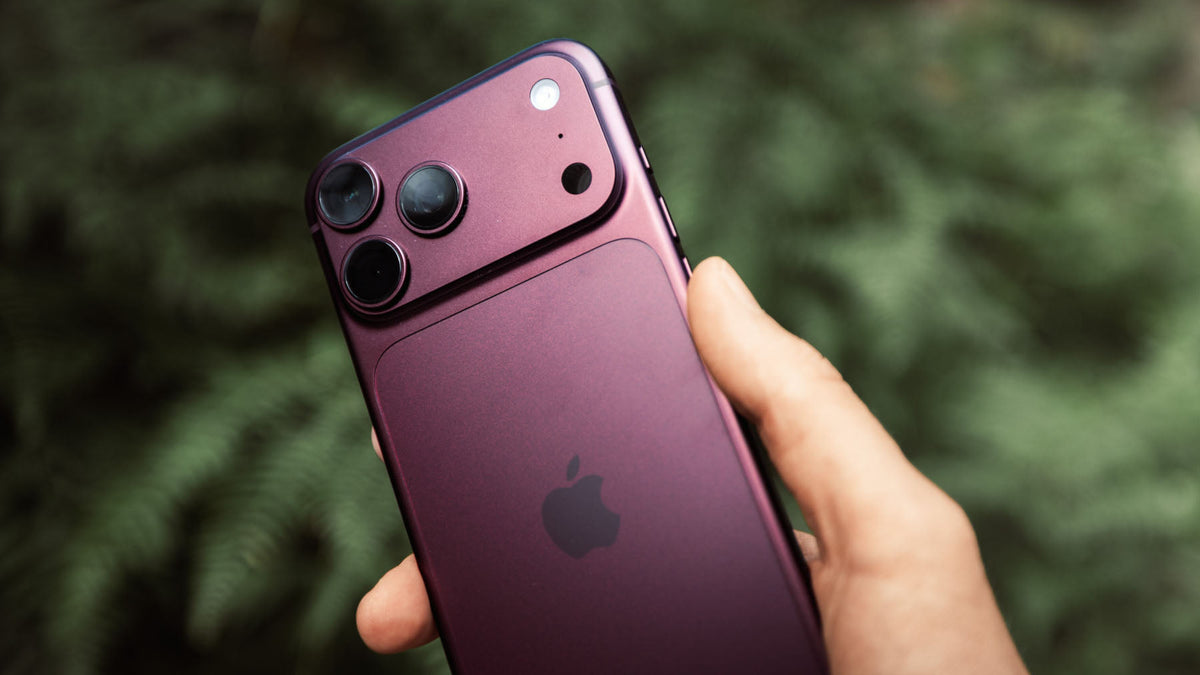
iPhone 18 Pro Apple Log: How to Actually Color Grade It in 2026
The iPhone 18 Pro shoots Apple Log 2, the same profile name Apple used on last year's 17 Pro, and it looks exactly like every other Log format straight off the sensor: flat, gray, and washed out. This guide covers what's actually changed on the 18 Pro, and the real options for turning that flat footage into something usable.
- iPhone 18 Pro shoots Apple Log 2, carried over unchanged from the 17 Pro. There's no "Apple Log 3."
- The video/Log pipeline itself is largely the same as last year; the headline camera changes (variable aperture, new manual Pro controls for aperture, shutter, white balance, and histogram) are mostly stills and control focused, not a new color science.
- ToneLab Chroma wins for anyone grading iPhone footage inside DaVinci Resolve, Premiere Pro, or After Effects: one-click Log-to-Rec709 conversion plus a full toolkit, not just a single preset look.
- Static Apple Log LUT packs work, but only give you one look per LUT, and only handle the initial conversion. No finishing tools included.
- DaVinci Resolve's free color tools are the zero-cost route if you have time to learn manual Log grading.
- Skipping Log entirely (shooting standard 4K Dolby Vision) is the easiest option, but gives you meaningfully less room to grade later.
Why this matters
A Log profile records with a flattened tone curve so it holds more shadow and highlight detail. The tradeoff is that it looks unfinished until it's graded. Apple Log 2 is no different: footage reads gray and low-contrast right off the iPhone 18 Pro until you apply a conversion.
One thing worth clearing up, since it trips people up every year a new iPhone ships: the 18 Pro's headline camera upgrades (the new mechanical variable aperture and the added manual Pro controls for aperture, shutter speed, white balance, and a live histogram) are about capture flexibility, not a new Log format. If you shot Apple Log on a 17 Pro, the 18 Pro's Log footage behaves the same way in post.
Since this is footage coming off a phone, grading it means pulling the clips into a real editor, such as DaVinci Resolve, Premiere Pro, or After Effects, rather than editing on-device.
What makes the best iPhone 18 Pro Apple Log grading option
- Conversion accuracy: correctly maps Apple Log 2's tone curve to Rec709, not a generic flat-footage preset
- Depth beyond one look: a single LUT gives you one style; real flexibility means multiple looks plus finishing tools (skin tones, split toning, grain)
- Editor compatibility: works natively inside DaVinci Resolve, Premiere Pro, and After Effects
- One-click speed: corrects exposure and color cast without manual curve work first
- Learning curve: how much manual adjustment is still required afterward
Best options for iPhone 18 Pro Apple Log at a glance
| Option | Best for | Standout feature | Key limitation |
|---|---|---|---|
| ToneLab Chroma | Anyone grading Apple Log 2 footage seriously | One-click conversion plus 65 Creative Looks, Finishing Tones, Split Toning, Skin Tones | Requires a desktop NLE, not an on-phone app |
| Static Apple Log LUT packs | A single, specific look | Fast, cheap, simple | One look per LUT; no built-in finishing toolkit, very limiting |
| DaVinci Resolve (free, manual) | Learning color theory | Full manual control, zero cost | Steep learning curve, slow per clip |
| Skip Log, shoot Dolby Vision HDR | Zero editing time | Usable straight out of camera | Far less grading headroom than Log |
1. ToneLab Chroma: best overall for iPhone 18 Pro Apple Log 2
ToneLab Chroma converts Apple Log 2 footage to Rec709 in one click, then gives you 65 Creative Looks plus a full finishing suite (Split Toning, Skin Tones, Finishing Tones, Film Grain) inside DaVinci Resolve, Premiere Pro, or After Effects.
Pros:
- Purpose-built Log-to-Rec709 conversion for Apple Log 2, not a generic flat-footage fix
- 65 Looks instead of one, plus tools to fine-tune skin tones and finishing on top
- Same plugin also covers 50+ other camera profiles, so it's not iPhone-specific if you shoot on other gear too
- New updates on a regular basis
Cons:
- Desktop-only. Footage needs to be imported into an editor first
- A one-time cost, not free like manual grading
Best for: anyone who wants iPhone 18 Pro footage to look genuinely graded, not just color-corrected, without hand-building every look from scratch.
Verdict: Buy.

2. Static Apple Log LUT packs: best for a single, specific look
A LUT pack gives Apple Log 2 footage one fixed cinematic look in one click.
Pros:
- Fast, cheap, simple to apply
- Works as a standard
.cubefile in any editor
Cons:
- One look per LUT. No room to adjust skin tones, split toning, or grain on top without separate tools
- Doesn't include the deeper finishing controls a full plugin does
- No updates ever. LUTs will become obsolete at some point
Best for: someone who wants exactly one consistent look and doesn't need flexibility beyond that.
Verdict: Hold. Fine for a single-style channel, limiting for anything more varied.
3. DaVinci Resolve manual grading: best free option
DaVinci Resolve's free version has full color wheels, curves, and scopes capable of grading Apple Log 2 by hand.
Pros:
- Completely free
- Full manual control over every clip
Cons:
- Real learning curve if you're new to Log-to-Rec709 conversion
- Slow. Grading every clip by hand doesn't scale
Best for: people with the time to learn manual color grading properly.
Verdict: Hold. Free, but budget time to actually learn it.
4. Skip Log entirely, shoot Dolby Vision HDR: best for zero editing time
Pros:
- Zero grading required, usable immediately
- No risk of a badly exposed Log clip
Cons:
- Meaningfully less dynamic range and grading headroom than Log
- Harder to match against graded Log footage later
Best for: casual shooting where speed matters more than the final look.
Verdict: Wait. Use it for now, move to Log once you're ready to grade.
Which should you choose?
If you're serious about how your iPhone 18 Pro footage looks, ToneLab Chroma is the buy: proper conversion plus real finishing tools, not just one preset. If you only need a single consistent look and nothing more, a static LUT pack is a reasonable cheaper option. Skip both only if you have time to learn manual grading in DaVinci Resolve for free, or you're not ready to shoot Log yet.

FAQ
Does the iPhone 18 Pro shoot a new Log format?
No. It shoots Apple Log 2, the same profile name and pipeline used on the iPhone 17 Pro.
What actually changed on the iPhone 18 Pro camera?
Mainly a new mechanical variable aperture and added manual Pro controls (aperture, shutter speed, white balance, live histogram), not a new color or Log format.
Can I grade iPhone 18 Pro footage on my phone?
Yes, with our iPhone app Tonelab Mobile. Tonelab Chroma, however, is a desktop plugin for DaVinci Resolve, Premiere Pro, and After Effects, so footage needs to be imported to a computer first.
Do I need to shoot Log on the iPhone 18 Pro at all?
Only if you want maximum grading flexibility. Standard Dolby Vision HDR needs no grading but gives up dynamic range.
Will an Apple Log LUT built for the iPhone 17 Pro work on iPhone 18 Pro footage?
Yes. Since the Log profile itself didn't change between the two phones, existing Apple Log 2 tools and LUTs apply the same way.
Is ToneLab Chroma only for iPhone footage?
No. The same plugin covers 50+ camera profiles, including Sony S-Log, Canon C-Log, and DJI D-Log, so it's useful even if the iPhone isn't your only camera.
One last thing
If a tutorial or LUT pack tells you the iPhone 18 Pro needs a different grading approach than the 17 Pro, that's outdated advice. Apple carried the same Apple Log 2 pipeline forward. The camera changed. The color science didn't.

Leave a comment
This site is protected by hCaptcha and the hCaptcha Privacy Policy and Terms of Service apply.